Screen Recorders That YouTubers and Streamers Use and What Course Creators Should Borrow Instead
Course creators need recording software built for explanation, not performance.
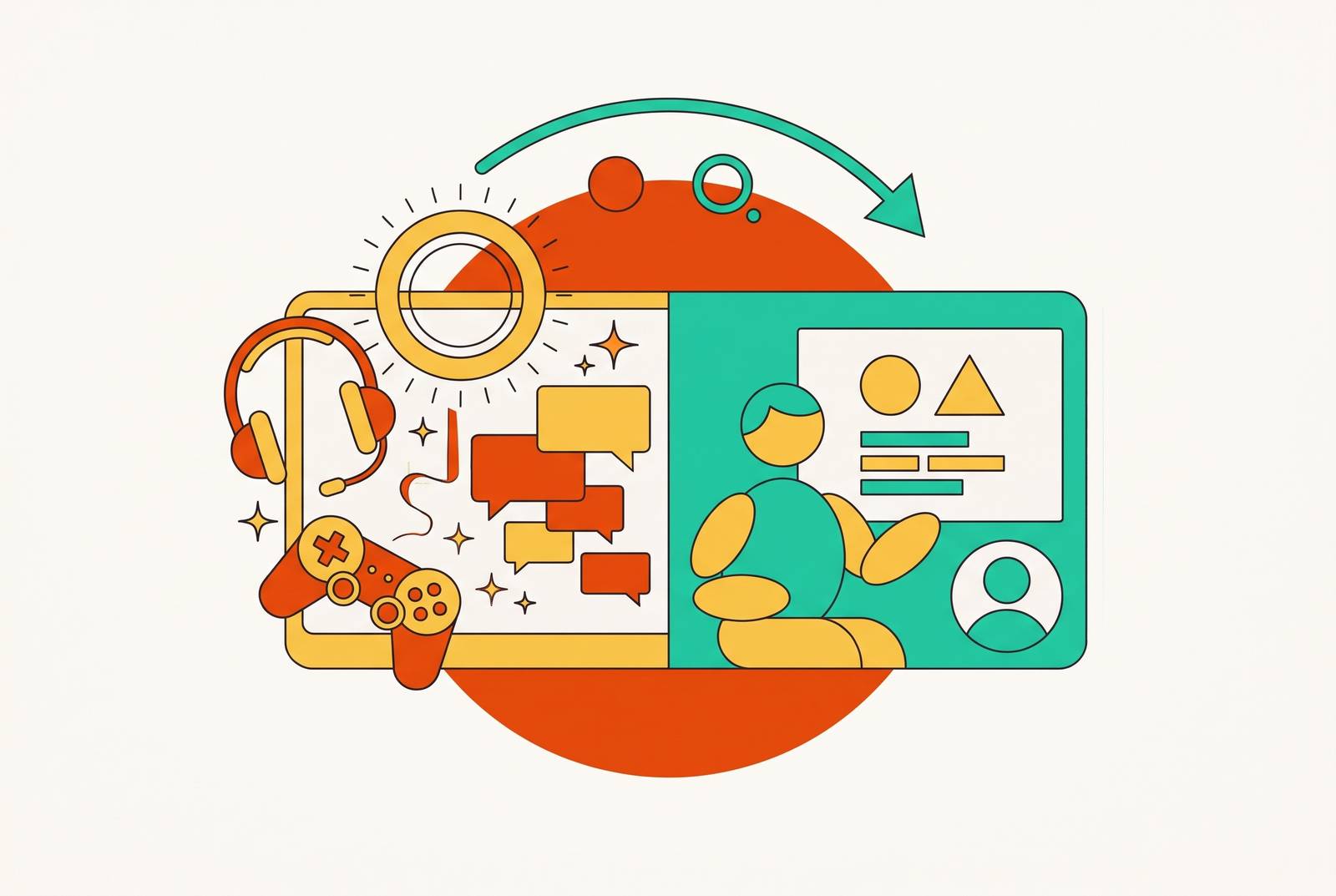
OBS Studio is the top recommendation for YouTubers and streamers who need free, flexible recording and live production on Windows, Mac, or Linux. For course creators, the best screen recorder instead combines recording, text-based editing, caption review, and shareable output in one place. Creators’ recording discipline is worth borrowing independently of their separate-app editing pipeline.
Why YouTubers and course creators need different things from a screen recorder
A gaming creator needs to capture performance, while a teacher needs to turn an explanation into a lesson someone can follow. Both need clean footage and clear sound. But the teacher also needs structured lesson flow, accurate terminology, and captions that teach the same thing as the spoken explanation.
A recorder can handle complex production beautifully and still leave a course creator with most of the work unfinished. The recording must be reviewed for accuracy, corrected, captioned, and delivered to a learner. A separate editor and upload step may fit a dedicated video creator’s production schedule, but they add friction to a teacher’s day. This is right tool, wrong job territory.
Which screen recording software do YouTubers and streamers use, and why is OBS Studio the default?
OBS dominates the streamer and gaming-creator stack because it is free, open-source, cross-platform, and built for live and multi-source production. It runs on Windows, macOS, and Linux. That makes it a strong starting point for creators whose work combines several inputs and live delivery. Its appeal is not simply that it records a screen. It gives creators detailed control over a production that may be unfolding while the audience watches.
That control shows up in its streaming and audio tools. For a demanding live workflow, it has direct streaming to YouTube Live and other platforms, detailed encoder and bitrate settings, and advanced audio mixing that works across several inputs. Flexibility is the point of the design. A streamer has good reasons to value those controls, even when using them means accepting technical complexity. The software is built for someone who needs a control room.
However, that control room has no built-in editor. When a creator needs to make cuts, add captions, and export a recording, they move to another app. For a dedicated gaming creator, that division can be a reasonable part of production. For a teacher producing five lessons a week, it creates a second job after the first one ends.
The rest of the YouTuber toolkit and what Nvidia ShadowPlay, ScreenFlow, and Camtasia each reveal about the workflow they serve
Nvidia ShadowPlay serves creators capturing gameplay, especially channels featuring fast-action games. Its minimum RAM requirement is 4GB. It belongs in this toolkit because it can record live gameplay whose next move is unknown, while an explanation can be planned ahead. That is a different capture problem from teaching. A course creator who picks it because gaming creators use it would get a tool chosen for events that cannot politely pause while someone explains a concept.
ScreenFlow moves closer to the tutorial creator’s needs by combining recording and editing in one tool. That appeals to productivity creators who want fewer apps. The trade-off is that it is Mac-only and still requires timeline-based editing skill. Bringing the work into one application removes a handoff, but it does not remove the need to learn how to edit footage. One workshop is simpler than two, though the machinery still needs an operator.
Camtasia is the instructional-video specialist that straddles both worlds. Its integrated editor removes the need for a separate editing app, while cursor and annotation tools suit software walkthroughs. It is the closest fit for course creation in this stack. Yet its workflow still calls for timeline skills, and its feature set emphasizes instructional polish. That can be a worthwhile trade for someone seeking detailed control, but it is not the same as removing the editing burden.
At the simpler end, Xbox Game Bar on Windows and QuickTime on Mac serve quick screen clips. These built-in options offer minimal control and no editing in this workflow. Their appeal is speed. Together, these tools form a use-case shortlist rather than a universal ranking, with ShadowPlay for gameplay, ScreenFlow for Mac-based recording and editing, Camtasia for instructional polish, and built-in tools for quick capture. Each solves a particular problem, so none earns the course-creator recommendation merely by appearing in a YouTuber’s toolkit.
The three workflow gaps the YouTuber stack leaves open for course creators
The first gap is the break between capture and usable editing. In OBS, that break is literal because there is no editor. ScreenFlow and Camtasia let creators stay in one app, but they still need to know how to do timeline-based editing. After recording a lesson, a subject expert still has to edit it, a separate job that calls for another set of skills.
The second gap arises because a timeline supports visual review, while a course creator needs to inspect what was said, check terminology, and correct inaccuracies. Text is the more natural working surface. Caption accuracy belongs in that same review because an incorrect caption in a technical lesson can teach the wrong information.
The third gap is the handoff from a video file to something another person can use. A YouTuber’s work ends with a file that goes to YouTube, while course creators often need a link right away for async review, client approval, or embedding in a course platform. Rendering and a separate upload add another interruption before anyone can review or learn from the work. The features missing from this stack follow from what its tools were built to do.
Why the integrated editing gap matters most and what it costs course creators in practice
Editing takes the most work because every recorded explanation has to go through it before it becomes a finished lesson. The manual workflow starts with setting recording parameters and speaking clearly through the capture. Then come timeline review, manual cuts, caption work, export settings, and upload. Each stage asks for a skill and a context switch. A teacher can know the subject perfectly and still spend too much of the production day managing footage.
That work helps explain why course creators put out fewer lessons than they have content to teach. A verbal mistake may be small, but finding and removing it belongs to the editing workflow. Then captions and delivery add more work before the lesson is ready. The lesson has been taught to the recorder. It has not yet reached the learner, which is a rather unhelpful place for a lesson to retire.
AI-assisted editing changes how much of that sequence must be done manually. Automation can handle rough cuts from transcripts, silence and filler removal, auto-captioning, and reframing, reducing repetitive post-production without reducing output quality. Editors can spend less time assembling a rough cut and more time refining it. For non-editors, the gain is slightly different because time otherwise spent learning tools becomes available for reviewing the explanation. Automation can make the required accuracy review the main task.
For course creators, choosing a tool that requires no editing skills therefore becomes more useful than choosing an editor to learn. Transcript-based editing lets someone cut a recording by working with the text of what was said. No timeline knowledge is needed for that approach. A tool combining recording, rough-cut editing, captions, and export removes the need to produce lessons across separate apps, while direct sharing closes the delivery gap. The greatest leverage comes from shortening the path to a usable lesson.
What course creators should actually prioritize when choosing a recording tool
The lesson for tool selection is to start with the unfinished work after recording. Recording and editing should happen in the same tool, so creators can keep working in the same app after they record. Camtasia meets that requirement, with timeline editing as the trade-off. A transcript-based editor meets it without the same prerequisite. For a subject expert seeking to focus on teaching, that distinction deserves particular weight.
The next priority is transcript-based review and caption generation. Auto-generated captions and text-based editing let a creator read through the explanation to check it and make cuts. Familiar skills make the work more approachable. For specialized courses, a tool that supports custom vocabulary lists can help get industry terminology right.
Direct delivery deserves equal attention during selection. A shareable link available when recording ends removes the separate rendering-and-upload detour for immediate review. That is especially useful for async feedback, client approval, and embedding in a course platform. Learners should not need to download a file.
Secondary features should protect time already invested in a recording. With mid-recording correction or an easy way to recover a clip, a creator can fix a mistake without starting over. Custom backgrounds, layouts, and on-brand output should be defaults rather than new post-production tasks, while a teleprompter and invisible recorder can reduce retakes. A course creator who also streams or runs a gaming-adjacent channel may still need OBS for that work, with a purpose-fit tool handling lesson production.
The borrowing worth doing and what course creators can legitimately take from the YouTuber workflow
Course creators should borrow the YouTuber’s discipline about sound. Bad audio can end a viewing session before the explanation has a chance, so a USB microphone rather than a built-in mic is the hardware investment that transfers directly. Clear audio is part of making the lesson usable.
The same restraint should guide recording resolution. For course screen recordings, the practical recommendation is 1080p rather than higher resolution, with 60fps as the screen-content standard in this workflow. Some YouTubers suggest 4K uploads for better compression quality, but higher resolutions make screen recordings into bigger files with no visible gain in quality. More pixels are not a teaching strategy.
Course creators can also borrow the habit of cutting for attention, then take it further. While streamers may record for hours, each course lesson should be short and cover exactly one problem. The learner needs room to absorb and act. Creators should therefore choose how long a lesson will be as they plan it, before they finish recording. A focused lesson gives the editing process a clear purpose, instead of asking it to rescue an explanation that tried to do everything.
Course creators can get more from the record-review-iterate cycle than from trying to make a perfect first draft. Course creators who wait until a lesson is polished before sharing it also wait longer for feedback that could make it better. Audio discipline, sensible resolution, focused lessons, and early feedback are worth borrowing from the YouTuber workflow. Replacing its separate-editor assumption frees time for improving the teaching.