Transcript-Based Editing for Course Creators
Edit course videos by cutting text instead of scrubbing timelines.
When a lesson is built around spoken words, editing those words is the most direct way to edit the video. A transcript-first workflow replaces much of the hunting and trimming with reading, while leaving the creator in charge of what the lesson says. The best fit is a tool that carries that advantage from recording through captions and sharing.
Why course content is fundamentally a text problem disguised as a video problem
A course lesson usually gets its structure from an explanation. In a talking-head lesson, the speaker makes the case. In a screen walkthrough, the narration explains what the learner is seeing. In a narrated slide deck, the voice connects the slides into a lesson. These formats look different, but their backbone is language.
That structure determines what most cuts are for. To cut a mistake, drop a repeated phrase, or tighten an explanation, the creator has to choose which words to keep. By contrast, a filmmaker cutting action or a YouTuber assembling a B-roll montage must judge the images and their rhythm. Those are genuinely visual decisions. When a course creator cuts an explanation that went nowhere, the work is more like editing a paragraph.
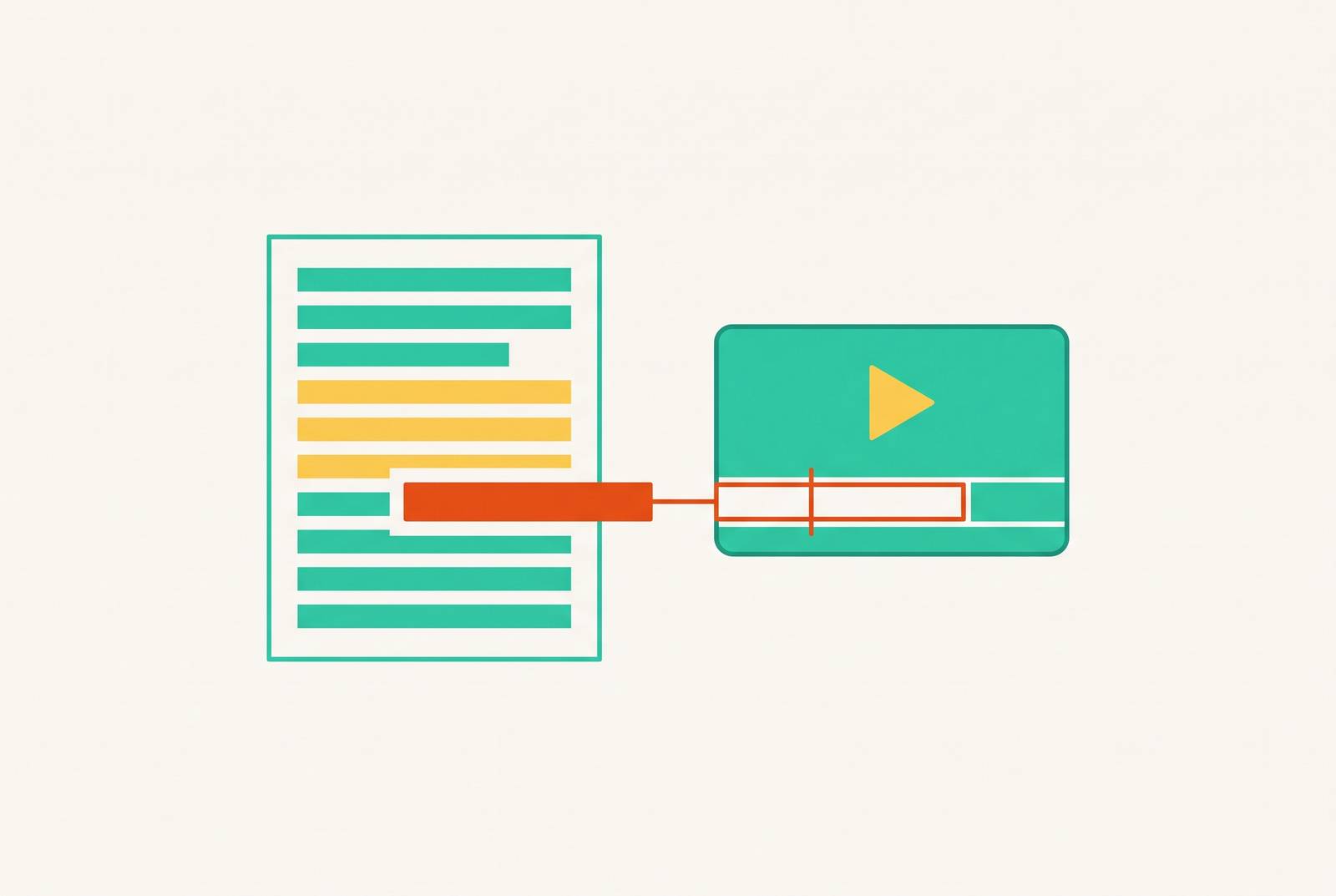
Deleting a sentence from the editing transcript removes the corresponding part of the recording. If you know what you said and what you meant to say, you already know much of what needs cutting.
What timeline editing asks of a course creator versus what they actually need
With traditional timeline editing, the creator has to find the spoken words in a visual interface. To find a mistake, you scrub through the recording and listen for it. Once you find it, you set the boundaries of the cut. That process makes sense when the timing of an image matters. It adds friction when the whole decision is simply that the sentence is wrong.
Professional video editing tools provide precision for work that needs it. Their range is not a flaw, but learning and operating that range takes time. For a course creator, that becomes an ongoing production cost. A cockpit is useful, but not every trip needs a pilot’s licence.
Most course cleanup has a narrower remit, including removing mistakes, cutting filler, tightening pacing, and adding captions. Mistakes occur in what was said, and filler words and repeated phrases are part of that speech. Much of the pacing work comes from removing redundant sentences. A transcript lets the creator choose directly which words to cut without having to work out their frame boundaries.
How transcript-based editing works in practice
The workflow begins with a recording of the screen, webcam, or both. For the common course format considered here, that means one continuous take. A transcript then becomes the main editing surface, with its words tied to the recording. Instead of replaying the lesson to locate every error, the creator reads through it. The task shifts from searching through time to reviewing an explanation.
When a word, phrase, or sentence needs to go, deleting it removes the corresponding audio and video. There is no need to scrub to that passage and set separate in and out points. Automatic filler-word and silence removal can run before this human pass, leaving a cleaner draft to review. The creator can then concentrate on whether the remaining explanation is accurate, clear, and worth the learner’s time.
A small recording habit helps this process. When a mistake happens, keep the take running, pause, take a breath, and repeat the last sentence. The pause creates a visible silence gap in the waveform, while the repeated sentence makes the correction easy to identify in the transcript. The creator can cut the failed attempt word by word without having to set the cut at the exact frame. Recording several lessons in one session also lets the creator tackle the transcript edits for a module together.
Once the lesson is trimmed, captions come from the same transcript. The creator reviews and styles them, then exports the video in the format the LMS requires, typically MP4/H.264/AAC. The same text has now supported both the cut and the captions. That continuity is a large part of the workflow’s value.
Why AI-assisted transcript editing compresses course production further
AI assistance saves more time by doing the same cleanup tasks over and over before the creator starts to edit. Here, the useful operations are specific, including filler-word removal, silence detection and removal, and automatic caption generation. They give the creator a cleaner first draft rather than asking the creator to find every “um” individually. Nobody starts a course business for the thrill of hunting “uh”.
The creator still makes the editorial decisions and must approve every cut. Likewise, auto-captions remove the need to produce captions from scratch, but not the need to review them. Software takes care of the repeated tasks, while the person in charge of the lesson controls what it says.
That model differs from generating a video without filming one. Synthesia turns a written script into avatar narration, which can suit training that needs consistent multilingual delivery. It does not edit a creator’s existing footage. For lessons built on real recordings, a tool’s AI can either speed up the creator’s edit or make a video without filming one.
What transcripts contribute beyond editing — accessibility, repurposing, and searchability
The transcript remains useful after the last cut. What began as an editing surface can also give learners another way to follow and revisit the material. The University of Waterloo notes that transcripts can strengthen engagement, focus, retention, and comprehension. It also says that transcripts help students find key points in educational media.
Searchability is especially valuable when a learner returns with a specific question. A searchable transcript lets them locate the moment where a concept was explained without replaying a long lesson. That matters for reference-heavy technical courses as well as lecture recordings.
Accessibility gives transcript quality further weight. Northwestern University states that audio or video created for a course must have captions and/or a transcript available. ASU requires new recorded video intended for students, employees, or the public to have edited auto-captions or manual captions that the creator makes accurate. These policies underline why generating text is not the same as finishing it. Review remains part of publication.
The text also supplies material for other formats. A module transcript can be edited into a blog post, a summary guide, or a promotional excerpt without watching the recording again. A well-reviewed transcript earns its keep more than once.
What to look for in a tool that makes transcript editing the default, not an add-on
Those uses make the quality of the whole workflow more important than the presence of a transcript button. In a tool that uses the transcript as its editing surface, deleting text should make the corresponding cut in the recording. If precise cuts still require a trip to the timeline, the transcript is serving as a viewer. The distinction is easy to miss in a feature list and hard to ignore during production.
With recording and editing in one place, the creator can start work on the transcript without exporting footage to another application. A full workflow carries the creator through recording, transcription, editing, captions, and export or sharing. Each separate application adds a step that the creator has to manage.
Automatic filler-word and silence removal should prepare the first draft before the creator’s pass. Captions should come from the same transcription pass and remain reviewable and styleable within the tool. Once the video is finished, the creator should be able to share it without waiting for rendering. Together, these criteria distinguish a workflow built around text from a timeline workflow with text attached.
How the main tools available to course creators handle transcript editing in practice
The tools do different jobs when making videos, and some have no transcript editor. Camtasia is built for screen tutorials with callouts, zooms, and cursor effects. Its multitrack timeline supports precise lesson editing on Windows and Mac. It also serves instructional designers publishing formal LMS courses with quizzes and interactive hotspots.
ScreenFlow offers a different proposition for Mac-based creators. It has one-time pricing, no subscription, and a manual timeline workflow without meaningful AI assistance or transcript-based editing. Its strength is predictable cost and a dependable setup for creators who record the same way every week. It fits someone who does not need AI-assisted text editing, rather than someone seeking it under a different label.
Synthesia belongs in a separate category because its input is a script. It makes avatar narration and cannot edit a lesson that has already been filmed. One-click translation makes it suited to multilingual training catalogs and corporate onboarding that needs a consistent avatar presenter. Its free-tier videos carry a watermark without a clean download, while video minutes are capped by plan and unused credits do not roll over. Those constraints affect catalog planning for this generation tool.
Jupitrr AI is more relevant to promotional work drawn from recordings. It handles AI clipping, scheduling, and analytics for social repurposing, with captions in 54+ languages. It does the whole first edit automatically, which makes the work easier but gives the creator less control over each cut, and it has no screen recording. That makes it a fit for talking-head promotional content. Automation that works for a promotional excerpt may not suit an explanation that the creator has to check for accuracy.
These distinctions prevent an unhelpful comparison based on feature counts alone. A timeline tool, an avatar generator, and an automated promotional editor each do a different job. Working with words at some point in the process does not make any of them a transcript-first course editor. The useful comparison is how closely each tool matches the recording, editorial control, and publishing job at hand.
Matching the tool to the lesson type and production situation
For screen-first technical courses requiring callouts, zooms, cursor effects, and LMS quiz publishing, Camtasia is the deepest fit among these options. Its timeline work is justified by the visual and interactive requirements. For a Mac-based creator who records consistently and wants a one-time cost without AI features, ScreenFlow remains a suitable choice.
A course with no filmed presenter needs a different kind of tool. Synthesia fits multilingual training that needs the same avatar delivery across many lessons, while Jupitrr AI fits promotional clips and social repurposing when automating the first edit eases the work at the cost of control over each cut. The destination of the video matters as much as what appears in it.
For most solo creators making talking-head or screen-plus-webcam lessons, the stronger fit is a full workflow with transcript editing as the default. The practical test is simple. Can you go from starting the recording to sharing a captioned, trimmed video without opening a second application? If not, some of the saved editing time may simply have moved into handoffs. The best tool for this job lets the creator work on the explanation, then gets out of its way.