Screen Recorders With Built-In Cleanup That Replace an Editing Team for Course Creators
Transcript-based editing lets course creators cut videos through text instead of timelines.
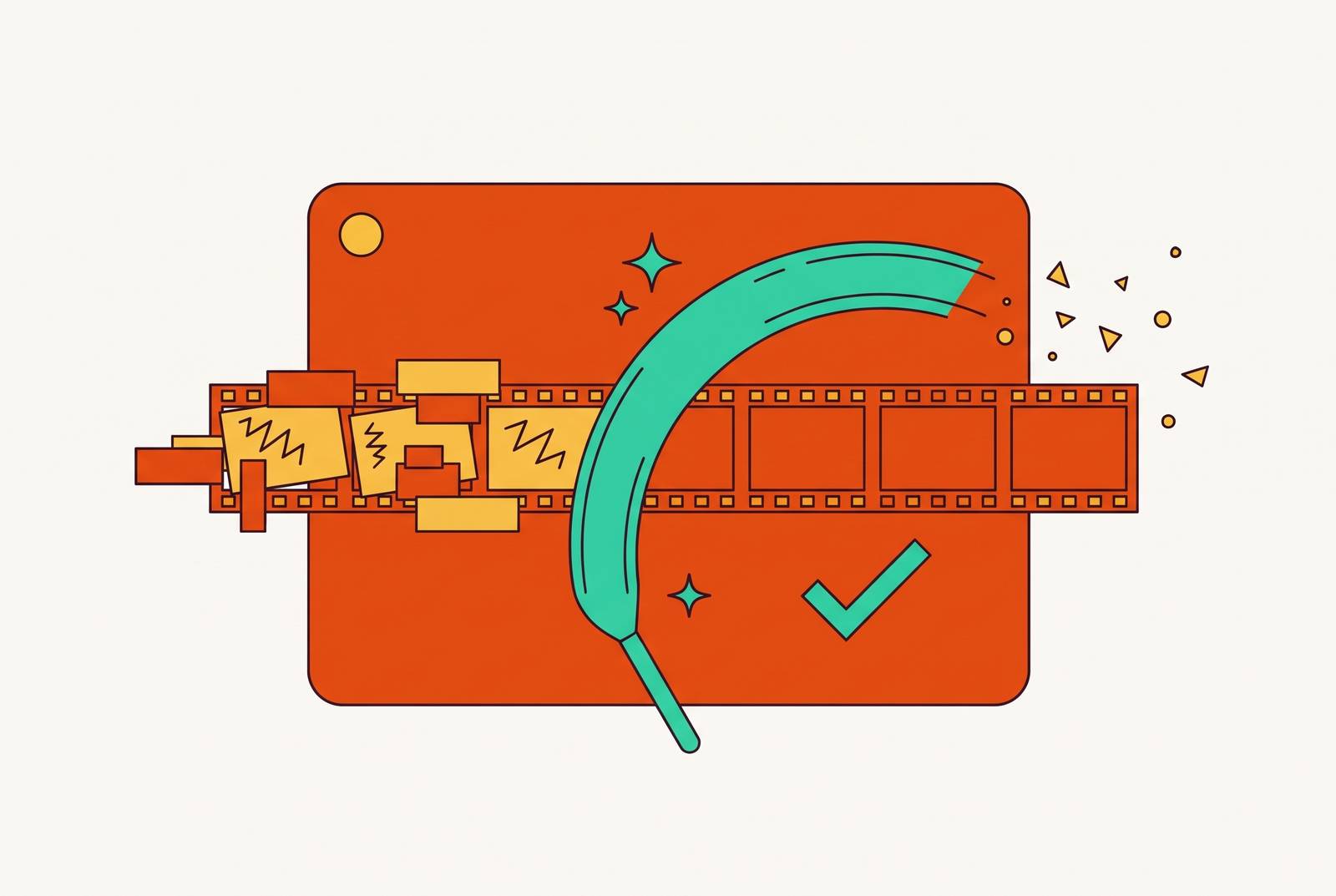
Screen recorders with built-in cleanup can replace the mechanical editing work behind software tutorial courses, chiefly by letting creators cut video through a transcript. Camtasia is the strongest choice here for formal LMS courses, while Bandicam for Mac suits annotation-rich recordings with subtitle export. The distinction is crucial. Generating a transcript is not the same as using it to edit video.
Why course creators have an editing problem that screen recording alone never solved
You have just recorded a 45-minute lecture and now face two hours of timeline scrubbing. The teaching is finished, but the production work has barely started. Somewhere in that recording are false starts, filler words, long pauses, and a sentence that took a few tries to get right. Finding each one means listening again and locating the cut. The record button was the easy part.
This work is especially hard to get through with course footage because it is long and full of speech. A narrated software walkthrough can contain useful instruction and verbal clutter in the same breath. A traditional timeline cannot tell the creator which words teach something and which get in the way. Instead, someone has to hunt through the recording, decide what to keep, and close the gaps without making the lesson feel choppy. That is editing work, even when the finished video needs no cinematic flourishes.
The familiar choices are to publish the rough version, pay an editor, or surrender time that could go toward teaching. None solves the mismatch between capturing a lesson and preparing it for students. Built-in AI cleanup changes that calculation when it handles the repetitive cuts inside the recording workflow. The advance is a different way to tell the software what should go.
How transcript-based editing works and why it collapses the skill barrier
Transcript-based editing connects the words in a transcript to their corresponding segments of recorded video. When the creator deletes a word from that transcript, the associated video segment disappears too. The text becomes the editing surface. That is the change in the work. A creator can find mistakes by reading the transcript.
AI flags instances of words such as “um,” “uh,” “like,” and “you know,” then allows a review before deleting them from both text and video. The creator can exclude flagged instances that belong in the sentence. Context still gets a vote. A useful word should not lose its job because it also moonlights as a verbal tic.
Silence trimming finds and closes the dead air between words automatically. Retakes need a different kind of attention because repeated or garbled text reveals the false start, which the creator can delete in the transcript. These operations remove the need to locate audio against a video track and close each gap manually. They do not decide whether the explanation itself works. Lesson order, visual effects, motion graphics, and multi-camera cuts still have to be handled on their own.
What these tools can realistically handle versus where a human editor still earns their rate
Complex motion graphics, cinematic color grading, multi-camera switching, and heavy visual effects remain work for a human editor. So do structural decisions about whether an explanation belongs earlier or a lesson should become two. These are not merely harder versions of removing “um.” They require judgment about the finished piece. An automatic cut cannot decide what a student needs to understand first.
For screen walkthroughs, narrated slides, talking-head explanations, and software demos, however, mechanical cleanup accounts for much of the editing burden. Transcript-based editing works well with these formats because their speech gives the tool something to work with. A silent screen demo with ambient sound gives it much less to work with. For lecture-style courses, AI can handle the mechanical pass while the creator makes the teaching decisions.
An immaculate recording can still show an interface that no longer exists, leaving students trying to follow instructions for buttons they cannot find. No AI cleanup tool catches that problem. Teams relying on these recorders need a process to identify and re-record clips when the underlying software changes. Polishing an obsolete walkthrough just makes the wrong directions sound more confident.
What should a screen recorder include for software tutorial courses?
Long-recording stability is the first filter for course work. A recorder that degrades, loses audio sync, or crashes past the 40-minute mark is unsuitable for lectures, however pleasant its short-message workflow looks. The next test is whether filler-word and silence removal happen within the recording workflow, eliminating the need to export to another editor. Otherwise, the handoff survives. The creator has automated a task without removing the production detour.
Captions and delivery formats matter just as much because students need to be able to use the lesson. AI captions drawn from the editing transcript save a separate pass, while SRT export provides the subtitle file. Without those features, accessibility work remains another job. For LMS delivery, the practical standard is H.264/AAC in an MP4 container at 1080p. Having to convert files by hand adds more work throughout a course, and corporate LMS workflows may also require SCORM export.
A webcam overlay can support learning, but one that cannot be repositioned afterward may cover the very control being explained. Auto-zoom that follows the cursor helps students on smaller screens read dense interfaces without the creator having to add zoom-and-pan animation by hand. These are practical safeguards. Their absence leaves the creator either fixing the view in an editor or publishing a lesson that is harder to follow.
How Camtasia handles the course-creator workflow and where it stops short
Camtasia is the strongest option in this comparison when a course must ship to a formal LMS. It is the only tool here with native SCORM export and built-in quiz authoring, making it the reference point for corporate training work. Interactive hotspots also suit that instructional workflow. The destination drives the choice. These features are not interchangeable with a recorder that simply produces an attractive video file.
Its AI cleanup uses Audiate text-based editing for automatic removal of filler words and hesitations, including ums, ahs, and repeats. Silence and pause removal, however, is a separate manual step. Automatic captioning is also available. Background removal without a green screen and AI voice generation extend the production options beyond trimming spoken mistakes.
Camtasia Rev provides an AI-assisted layout and quick-creation workflow covering sizing, backgrounds, effects, and filters. AI script generation is a separate Audiate feature available on the Create plan and above. The plans have distinct roles. Essentials includes watermark-free editing, Audiate text-based editing, captions, quizzes, and SCORM export, while Create adds AI script generation and AI voiceovers. AI avatars are restricted to Pro, and current pricing should be verified on the vendor page at publication.
What Bandicam for Mac offers creators who want recording, annotation, and subtitle export in one pass
Bandicam for Mac focuses on recording and transcription without the weight of a full editing suite. It records the screen, webcam, microphone, and system audio, with webcam overlay for tutorials and presentations. Real-time drawing and annotation are particularly useful during software walkthroughs because the creator can mark the screen while explaining it. The emphasis stays on the demonstration.
Its AI video-to-text transcription automatically generates an SRT subtitle file. The transcript is editable, with TXT and SRT export available, and creators can also export subtitled video. Built-in video trimming is limited to Pro. These features let creators record and prepare subtitles in the same tool, which works well when their footage needs little heavy editing.
Bandicam’s own description makes clear that transcription and text-based video editing are different things. If the main goal is deleting transcript words to cut the video, another tool is a better fit. That boundary prevents an expensive category mistake. Editable text does not, by itself, make the video editable through text. Bandicam fits annotation-rich recordings with subtitle delivery, while creators who need heavier structural editing will do that elsewhere or choose a different workflow.
Practical recording decisions that determine how much cleanup the AI has to do
Habits that cut down on filler words, dead air, and awkward pacing leave the software less to remove and help the speaker keep a natural delivery. Automation is useful, but it need not become a rescue service for every sentence. The aim is clearer source material. That makes cleanup a finishing pass rather than the place where the lesson finally takes shape.
Audio is the first place to spend attention. Students can tolerate imperfect video, but audio they cannot understand defeats the lesson, and a decent external microphone reduces the noise that cleanup has to compensate for. It also costs less than an upgrade to a better webcam. A sharper picture of the instructor does little for a student who cannot make out the explanation.
Recording lessons in segments rather than single long sessions also leaves less editing work for later. Each file is easier to re-record when its content goes stale, and this structure fits the way LMS platforms organize content by uploaded video file. That is especially useful for software courses, where an interface change may invalidate one explanation without invalidating the whole course. Smaller units make replacement more contained.
How to match the right tool to where a course creator actually sits in their workflow
The decision starts with the destination platform and the work that remains after recording. For a corporate LMS requiring SCORM packages and interactive quizzes, Camtasia is the top recommendation in this comparison because those features are built in. Its annual subscription pays for a tool that helps with more of the work of making lessons, beyond capture and transcription. That depth has a purpose. Whether that broader workflow fits the team depends on how many people are on it, how they budget, and how much structural editing they need to do.
For a Mac creator producing annotation-rich software tutorials with subtitle export and little heavy editing, Bandicam is the more focused choice. The trade-off is explicit. It is not the choice for someone whose main requirement is deleting transcript words to remove video, and its trimming feature belongs to Pro.
For creators whose main bottleneck is speech cleanup, the deciding question is whether the tool turns text edits into video cuts and handles the specific repetitive work consuming their time. Camtasia provides text-based filler cleanup, but pauses still require a manual step, while Bandicam concentrates on recording and transcription. Neither is a universal editing-team replacement. Transcript-based cleanup can remove the mechanical work that once justified a dedicated editor, but the creator still decides what the lesson should say, how it should be structured, and whether a section needs re-recording or another cut.