Why OBS Is Overkill for Course Creators and Which Recorder to Use Instead
OBS stops at the recording file; course creators need editing, captions, and delivery.
For course creators, the best screen recorder is usually one that connects recording, editing, captions, and sharing. OBS is a strong free option for watermark-free recording, but its workflow stops at the recording file. ActivePresenter is the strongest named alternative here for interactive training and LMS delivery, while creators making straightforward video lessons should prioritize clip-based recording and built-in editing.
What OBS was built to do and why that purpose matters
OBS is open-source software for video recording and live streaming. Its core unit is the Scene, a production layout that combines visual and audio sources into a finished feed. That feed can be recorded, streamed, or sent through a virtual camera. The design makes sense for live production. A broadcaster switches between layouts as a show unfolds, rather than treating each recording as a lesson to reshape afterward.
That purpose explains the controls, including Sources, encoders, bitrate modes, GOP intervals, and AAC audio tracks. Studio Mode, Multiview, multi-track routing, and WHIP/RTMP output control are built for that same kind of live production. They give someone running a repeatable live show detailed control over capture and transmission. For a course creator, however, they add decisions before the teaching can begin. The mismatch is structural.
Where OBS's workflow ends and a course creator's workflow begins
When recording stops, OBS has delivered its main output. For a course creator, that file is usually raw material. A cough needs cutting, a demonstration needs tightening, or a small area on screen needs a zoom so students can follow it. Then the lesson needs captions and a way to reach its audience. The recording is done. The work is not.
OBS has no timeline editor or trimming tools. It cannot cut that cough, add a post-production zoom effect, or generate captions. Static text overlays can be added during recording, but that is different from placing purpose-built text callouts after seeing where an explanation needs help. These options belong to a different stage of production, which requires another application.
That handoff creates a break in the workflow. Moving to a separate editor can mean exporting and re-importing files, changing their format, and learning another set of controls. Not every file will need every step, but the separate application still has its own learning curve. Across a whole course, that handoff is work that comes up again and again. It is the software equivalent of changing trains with all the luggage.
For course creators, the editing hours after recording are often where most production time goes. Excellent capture quality does not remove that burden, because a clean recording and a watchable lesson are different outputs. OBS solves the former.
The setup cost OBS asks you to pay before you record a single lesson
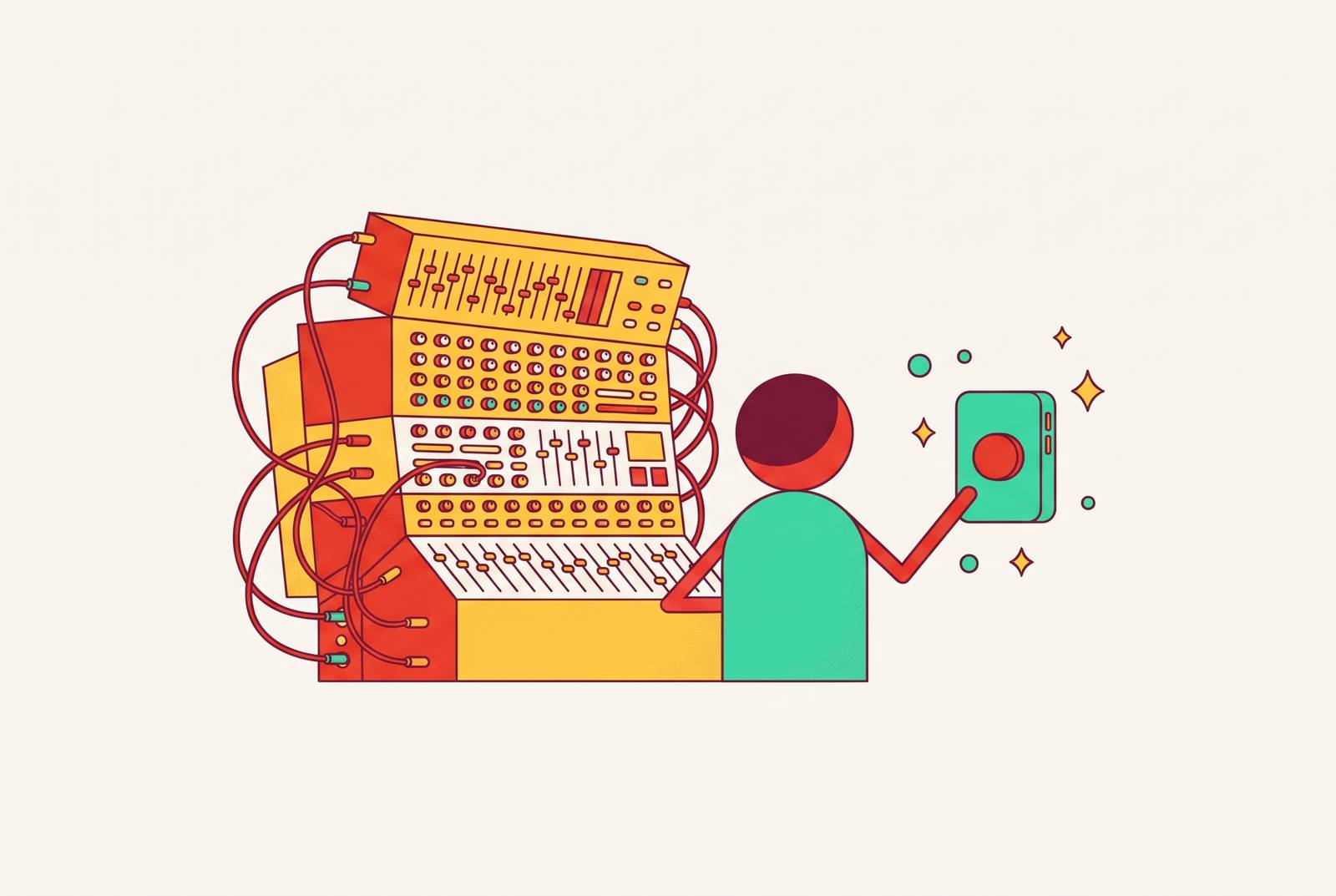
The extra work also begins before the first recording. A creator must navigate Scenes, Sources, output modes, encoder menus, resolution settings, frame-rate choices, and audio routing. Those controls describe how video is produced. Someone who arrives with slides and a microphone instead finds a small broadcast desk.
A basic course-recording setup takes roughly 30 minutes of configuration. That includes selecting “optimize just for recording,” creating a Scene, adding Display Capture and Video Capture Device sources, arranging the layout, setting output quality, and recording a test clip. Each step serves a purpose. The creator has to do all this technical work before the first lesson can start, with little of it handled by the tool itself.
The auto-configuration wizard helps, but only so far. It gets a creator to a basic working state in Simple output mode. Beyond that are choices about output modes, encoders, color format, sample rate, and bitrate, without guidance tied to educational workflows. Even people who make videos for a living can find those choices hard. OBS has no ready-made course-recording preset or feedback loop that tells a first-time creator whether the selected settings will produce clean, publishable lesson video.
To be fair, setup is a one-time investment. OBS also has extensive community documentation, so creators are not left without help when a setting causes trouble. But that counterpoint addresses only the initial setup burden, while the editing handoff recurs after every lesson. For someone spending more time configuring the recorder than recording, the technical preparation has already overtaken the job it was meant to support.
What course creators actually need from a recording tool
Course production starts with dependable capture over the length of the lesson. A recorder that crashes or loses audio sync partway through a 60-to-90-minute lecture cannot do the job, however good its controls look. Reliability comes before clever extras in this job. The same applies to audio, because students may tolerate imperfect video but abandon a course they cannot hear clearly. Noise reduction, gain normalization, and external microphone support are things a course recorder needs to have.
Seeing the instructor can help students retain information, but an overlay that covers a critical part of the screen defeats that purpose. Size and position need to be adjustable, with the option to toggle the camera during a session. A face should not become a pop-up blocker.
Mistake recovery is another basic production requirement. Clip-based recording lets a creator teach in short segments, fix mistakes between clips, and assemble a clean video without restarting the whole lesson. That changes the cost of a stumble. For someone building a library of lessons, this reduces both production stress and time spent repeating work.
After recording, the same continuity should extend to captions, transcripts, and delivery. Transcript-based editing lets people who are new to editing make cuts by changing text instead of hunting through a timeline or scrubbing waveforms. Captions support accessibility, while instant sharing or upload removes a separate render-and-export handoff. These connected needs describe the route from explaining something on screen to giving students a lesson they can actually use.
How purpose-built tools close the gap OBS leaves open
ActivePresenter is the clearest fit here for creators whose finished product needs an eLearning layer. It adds annotations, callouts, cursor highlights, zoom-and-pan, and quiz interactions. Those tools let a creator show students where to look and check what they have learned after recording the demonstration. That is a different job from mixing a live feed. That helps IT training teams and creators making compliance training or courses that need branching scenarios or knowledge checks.
Its export options also match that destination. ActivePresenter supports MP4, AVI, WMV, WebM, and MKV video output, plus HTML5, SCORM, and xAPI for learning management system deployment. A course intended for an LMS has needs that a shareable video alone may not cover. In that case, interactive output deserves more weight than the recorder’s broadcast controls.
ActivePresenter offers a free edition and paid licenses at $249 one-time for Standard and $499 one-time for Pro. There is no subscription. That pricing structure is relevant for creators who want to avoid another recurring software bill, though price alone does not establish workflow fit. The recommendation rests on its training tools and deployment options. The strongest case for choosing it is interactive instruction, which carries more weight than the appeal of fewer settings than OBS.
For individual course creators and startup or SaaS teams making polished lessons and demos, a different set of criteria takes priority. The practical recommendation is a recorder built around clips, transcript editing, and a short path to sharing. Clip-based recording addresses mistakes during capture, while editing through text lowers the skill barrier afterward. Automated silence and filler-word removal can reduce cleanup work. Automatic zoom effects can also remove the need to place each effect through manual keyframing.
Supporting content belongs in that evaluation too. Built-in subtitles, transcripts, titles, descriptions, and chapter markers reduce the need to move between tools after the video itself is finished. Media overlays, including shapes, arrows, images, animations, and sound effects, provide ways to explain or emphasize a point inside the recording workflow. These are selection criteria to check for in each purpose-built recorder. A simpler capture button alone does not close OBS’s post-production gap.
The one case where staying with OBS is the right decision
A creator with a stable configuration and a dedicated editor does not recover past setup time by learning a new recorder. OBS offers excellent recording quality, no watermarks, no time limits, and no required paid tier, with rock-solid stability once configured and extensive community documentation. That is a substantial case for keeping it. If ordinary post-production is the only friction, rather than missing captions or transcript editing, pairing OBS with an editor remains viable. The case is stronger still for creators delivering live lessons or webinars and recording those sessions as a byproduct, because OBS is already doing the job it was designed for.
Which screen recorder is best for where your workflow actually breaks?
The best screen recorder depends on where production time disappears. For a free, watermark-free recording workflow, OBS is a strong choice, provided separate editing is acceptable. For interactive training and LMS delivery, ActivePresenter is the strongest fit among the named options here. For a creator starting a continuing library of video lessons, recording, cleanup, captions, and sharing deserve to be evaluated as one job. The longest feature list is not a decision framework.
Naming the bottleneck comes first. If whole lessons keep getting restarted after a mistake, prioritize clip-based recording so a correction does not require repeating everything that went well. If cleanup consumes the time, prioritize transcript editing and tools for removing silences and filler words. These address different points in production.
If manual transcription and captioning are the burden, choose built-in transcript generation and subtitle output. If finished videos then sit waiting for upload, hosting, and sharing, prioritize instant-share output or link-based sharing. That last distinction is easy to overlook. A video can be finished from the editor’s perspective and still require work before a student can access it.
OBS leaves those downstream jobs to another application while remaining a strong recorder worth keeping in a setup that already works. That does make OBS the wrong tool to start with when most of the trouble comes between recording and a finished lesson. A creator who can name where that time goes can choose accordingly, paying for the work that needs doing rather than collecting controls for a broadcast that is never going to happen.