What a Twenty-Dollar Screen Recorder Budget Actually Buys a Course Creator in Video Quality
Built-in editing and captions justify the price by eliminating repetitive work per lesson.
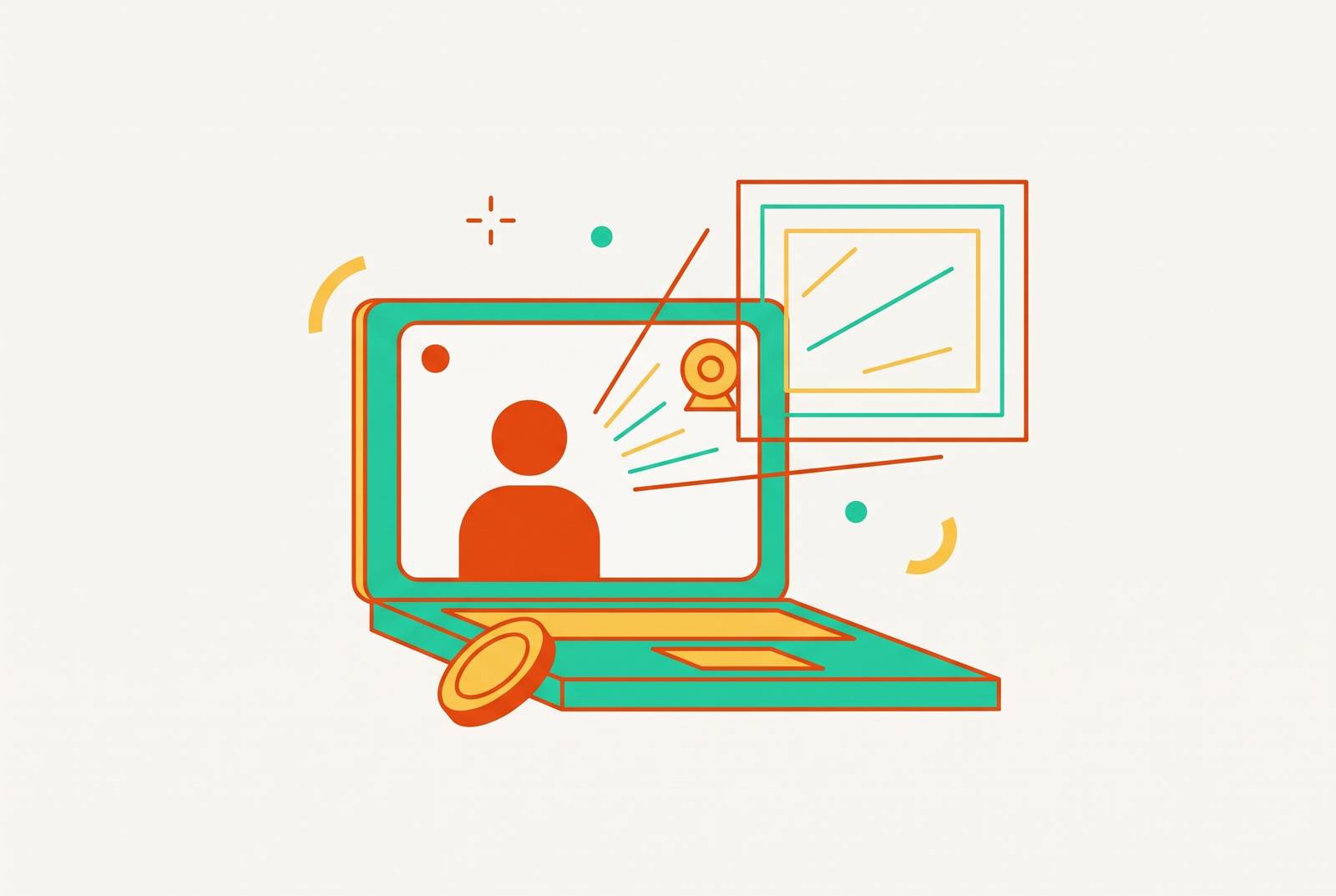
For a course creator, a mid-market screen recorder budget buys a faster path from recording to a finished lesson. OBS Studio is the strongest free starting point for watermark-free capture, provided a separate editing workflow is acceptable. Paying is worth it when built-in editing, captions, and sharing cut out work that has to be done for every lesson.
Why a mid-market recorder budget is above bargain territory
Free capture tools, entry paid plans, and professional suites serve different production needs. A twenty-dollar monthly budget sits in the middle of that landscape, above bare-minimum recording and below higher-cost all-in-one production tools. This is not bargain-bin territory. The useful distinction is what happens around the recording, including built-in editing, AI-assisted cleanup, and cloud hosting.
That distinction also changes how the price should be judged. Free tools can already capture a sharp screen recording, so resolution alone is a weak reason to pay for a subscription. The stronger comparison is between separate production steps and a connected workflow. A creator publishing regularly is paying to remove handoffs around the record button. The button has had quite enough credit.
What actually determines video quality for course creators — before any tool enters the picture
A paid recorder cannot rescue a session built on poor laptop audio and overhead-only lighting. The inputs still do the heavy lifting. In the webcam part of a lesson, even lighting has more to do with how professional it looks than camera resolution above 1080p. More pixels are not a substitute for a face the student can actually see.
Recording technique offers improvements without another purchase. Closing background apps frees CPU resources, while capturing only the relevant window reduces file size and visual clutter. Disabling notifications keeps unrelated pop-ups out of the lesson. These are small choices with practical effects. They give the recorder less unnecessary work and the student fewer distractions, which is a useful bargain at any budget.
The boundary is therefore straightforward. Software can help clean, cut, caption, and present a recording, but it cannot replace good source material or a clear explanation. That narrows the job of paid tools to something they can genuinely do, which is make good inputs easier to turn into watchable lessons.
What does a free screen recorder genuinely offer, and where does its real cost show up?
OBS Studio is free and open-source, with no watermark, no time limit on recording, and no limits on what can be exported. Its scene-based layouts support slides-only presentations, webcam overlays, and full-screen demonstrations, with separate audio tracks. Hotkeys let instructors switch layouts during recording. That makes it a serious option for lectures that alternate between slides and software, rather than a temporary compromise until the budget improves.
Its tradeoff appears after capture. OBS has no built-in editor, so trimming, captions, and final export move into another application. Setting up scenes, sources, and audio-routing can also take time, especially for instructors who are less at home with the technology. A consistent setup rewards that effort more readily than a creator who wants to open an app and explain something before the next meeting.
OBS and DaVinci Resolve work well together for recording and editing at no cost. The workflow still crosses several boundaries, from recording to importing, editing, exporting, and then arranging hosting and sharing. Each handoff is manageable on its own. Across a course, however, those steps recur for every lesson, including lessons that need only a false start removed. Free software does not send an invoice for this work. The calendar handles that department.
Other free options fit narrower jobs. QuickTime Player on macOS suits occasional, straightforward captures, while ShareX on Windows combines recording, GIFs, screenshots, and lightweight trimming in a utility toolbox. Neither is presented here as a complete course-production workflow. Nor is there a universal promise of recording without computer slowdown, because available CPU resources and background activity still affect the job. For a first course on a tight budget, the free stack remains legitimate. Its price is the extra production work.
What integrated editing actually changes in a course creator's production cycle
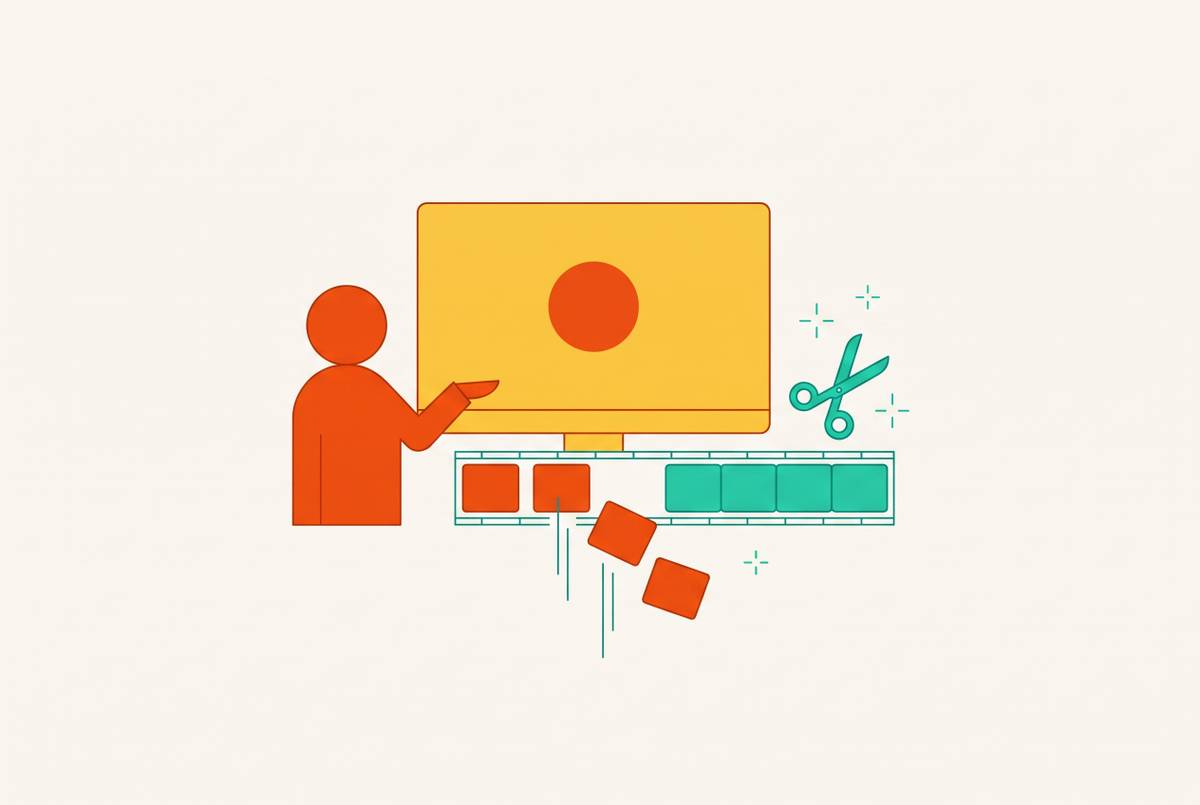
An integrated recorder removes the need to shuttle a lesson between applications just to finish it. Dead air, false starts, and transitions can be handled inside the recording tool, saving an export and import. That can save hours across a course.
A recorder that crashes or loses audio sync before the explanation ends is unsuitable, whatever its editing features promise. Mid-market tools are designed around extended sessions, but stability remains a core selection criterion. Webcam controls are another practical distinction, especially the ability to adjust position and size or reposition an overlay after recording. A friendly face is less helpful when it conceals the button being taught.
Transcript-based editing lowers a different barrier by letting creators make cuts through text, bypassing timeline scrubbing. Chapter markers and clip splitting also help turn longer recordings into sections that students can consume separately. The useful target is roughly one complete idea per lesson, with enough time to explain it thoroughly.
Delivery is the final handoff that integration can remove. With built-in cloud sharing, a finished export can be shared through a link, without setting up hosting or uploading it to another platform. Course delivery still needs the right file. MP4 with H.264 video and AAC audio at 1080p is the compatible export target for Udemy, Teachable, Thinkific, and Kajabi, with 720p the minimum on Udemy. A recorder that defaults to that format avoids an additional conversion step.
Where AI features at this price point deliver real gains — and where the marketing outruns the product
AI captions offer one of the clearest gains because transcription is useful work that otherwise consumes production time. Major LMS platforms require or strongly encourage captions, and students learning in a second language depend on them. Accuracy is the deciding factor. High-accuracy automatic captions can eliminate hours of manual transcription per course, while captions riddled with errors can erode trust. Generating text is only valuable when that text reflects the lesson.
Multilingual captioning, whether handled on-device or in the cloud, also reduces the work of creating and uploading separate SRT files. Translation is a distinct capability, however, and can sit on higher tiers of mid-market products. The plan boundary deserves attention. A recorder offering captions does not automatically include translated captions, and a creator targeting non-English-speaking markets has a different requirement from one who needs subtitles in the language already spoken.
Silence removal and filler-word trimming address another repetitive editing task. They can produce cleaner pacing without requiring audio engineering skills or patient hunting along a timeline. These are practical improvements. Background replacement and voice enhancement are real features too, but their benefits are narrower than removing distractions throughout a lesson.
Text-to-speech narration and AI video generation belong to a different category and appear on higher plan tiers of some tools. A polished avatar cannot add the knowledge that a shallow explanation lacks, while a screen recorder can help a real instructor share that knowledge clearly. Likewise, AI cleanup does not turn a recorder into an authoring platform. SCORM packaging, embedded assessments, and detailed student-engagement analytics still need dedicated LMS platforms or tools that cost more, such as Adobe Captivate.
The annotation and engagement layer that makes instructional video work
Clean footage is only part of instructional quality. Students also need to know where to look, especially when the screen contains code, menus, or dense spreadsheet cells. Cursor emphasis, zoom-to-click, callouts, and on-screen drawing provide that direction, and integrated versions are standard features of the mid-market tier. Their value is in making the explanation easier to follow rather than giving the recording more things that move.
A coding tutorial makes the distinction concrete. An entire desktop may look clear on the instructor's monitor while leaving the terminal difficult to read on a phone. Auto-zoom that follows the cursor brings the relevant area into view. A callout or arrow can then identify the exact part under discussion, reducing the student's work of finding it. This is an accessibility benefit for smaller screens.
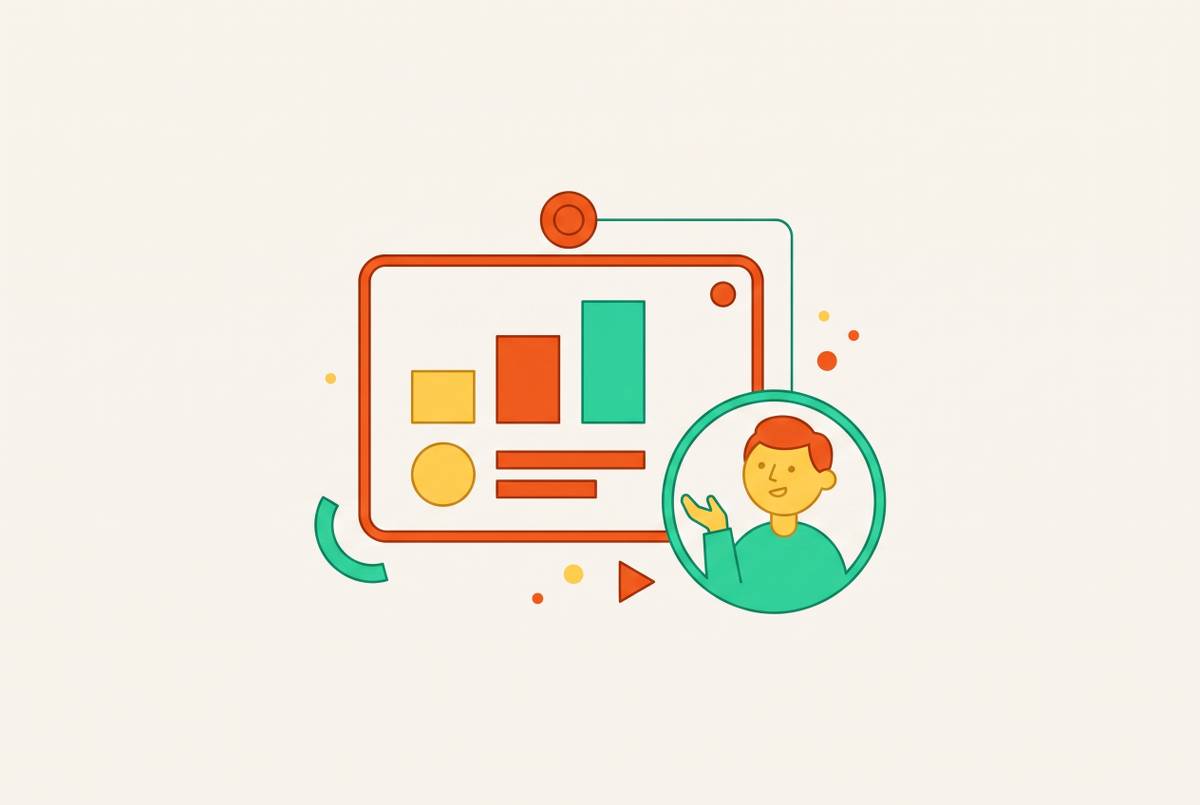
Cursor highlight rings and click indicators show where the instructor goes on screen, without the need to explain every click out loud. The instructor can focus on explaining why. Webcam overlays help in another way by linking the lesson to the person teaching it, a connection that is tied to trust and to students finishing the course. Many free tools also let creators change where overlays sit and what shape they are. The paid advantage is not exclusive ownership of a face in a circle, but controls that fit into the broader editing workflow without obscuring the material.
Some annotation work can be achieved through plugins or external editors in a free stack. Integrated tools bring those operations into recording or editing without another export. That is the consequential difference for regular production. A creator can guide attention while finishing the lesson rather than open another application to add the instructional layer.
What a mid-market recorder budget does not fix — and when spending more (or less) is the right call
A subscription can be the wrong purchase even when its features are useful. New course creators can turn tool selection into productive procrastination, delaying lesson production as they polish the means of production. The software will not ship the course. If weak audio or uneven lighting is the main problem, a microphone or key light improves the source more directly than a recorder upgrade. Spending on the visible bottleneck is more useful than spending on the most inviting feature page.
Recording frequency provides the next dividing line. A creator who makes fewer than a handful of lessons per month may be happy to edit and set up hosting in separate steps. The free stack fits that situation. OBS is the strong capture choice when flexible layouts are needed, QuickTime suits occasional straightforward recordings on macOS, and ShareX fits quick Windows captures better than structured course production.
At the other end, SCORM-compliant interactivity or substantial professional editing requirements point beyond a twenty-dollar recorder budget. Adobe's authoring tools address the former boundary, while a separate professional editing workflow serves needs beyond routine lesson cleanup. Paying more is justified by a requirement the recorder cannot meet, rather than a hope that a larger bill will produce a better explanation.
A creator who publishes often, needs captions without typing out the speech, and wants to finish lessons in one tool has work the subscription can save with each lesson. That is the purchase test. If the obstacle is recording conditions, spend on the inputs. If it is infrequent output, keep the free workflow. If it is repeated editing and delivery work, the mid-market tier has a clear job to do.