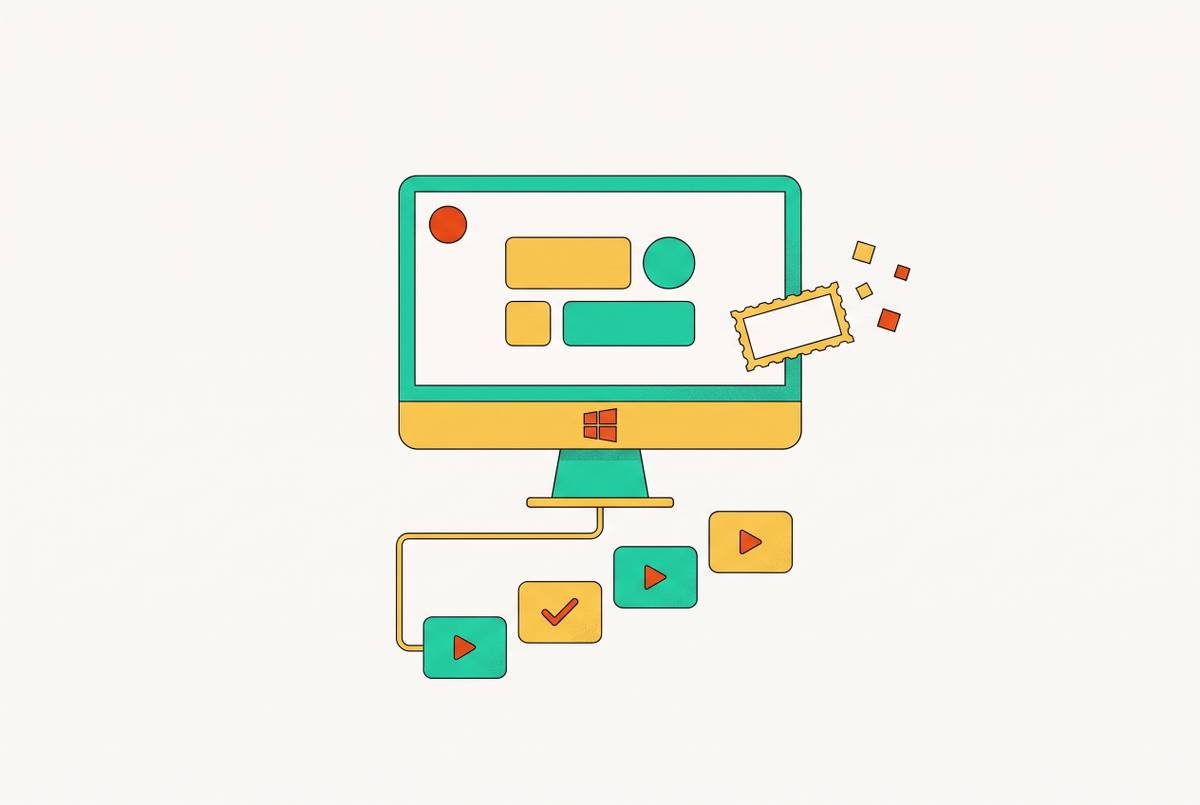
AI Screen Recording Features That Actually Help Course Creators Teach More Clearly
Transcript editing, cleanup, captions, and sharing each fix a different bottleneck.
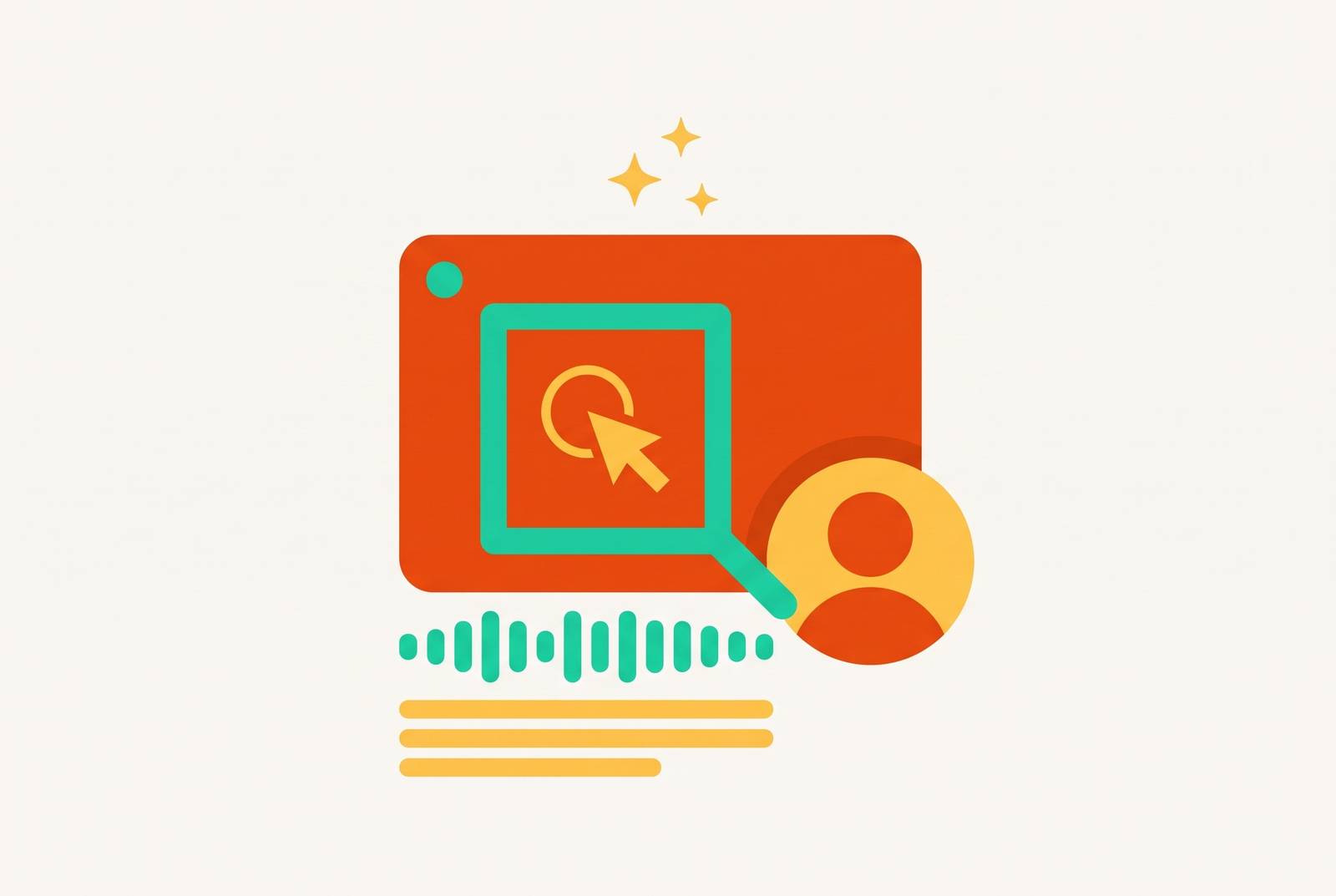
AI screen recording features help course creators teach more clearly when they clear a hurdle between recording a lesson and getting it to learners. Transcript-based editing, silence and filler removal, captions, and instant sharing each help with a different part of that work. The best choice depends on the lesson format and where production gets stuck.
Why most course videos fail before editing begins
Knowing how to do something is not the same as delivering a clear lesson about it. During recording, a creator may repeat an explanation, hunt for a menu, or pause while a file loads. Those moments are part of capturing knowledge, but learners need the useful sequence without the detours. The recording preserves both, with admirable but unhelpful loyalty. That is where the production bottleneck begins.
The work after capture includes trimming dead air, cleaning up speech, adding captions, and getting the result into learners’ hands. Each task left undone makes it harder for the learner to follow what the creator knows. Audio is especially unforgiving. Students will tolerate imperfect visuals but abandon a course with poor audio, so the cleanup layer is not merely cosmetic.
Procedural content shows how to do something and works best as a screen recording or demonstration. Conceptual content explains why something is important and works better as narrated slides. Mixing the two in one video usually weakens both. Editing then inherits a problem that trimming alone cannot solve, because the lesson is asking one format to do two different jobs.
What transcript-based editing actually does to a course creator's workflow
With manual timeline scrubbing, creators have to search through footage for something they often remember as words. When a creator deletes a sentence in the transcript, the corresponding video segment disappears, without frame-by-frame scrubbing, clip handles, or a separate re-export for that edit. The editor starts speaking the teacher’s language.
That shift is especially useful for long, narrated walkthroughs with repeated takes. A creator can review a 45-minute lecture as a document, remove a false start before a key concept, and cut the second explanation that says nothing new. The workflow benefit is that the creator does not need to learn timeline editing to make those changes.
The transcript still depends on the recording beneath it. Audio quality is the main influence on transcription accuracy, and soft furnishings, a decent microphone, and a consistent speaking pace help produce a first pass that needs little correction. Silent demonstrations offer much less text to work with. For heavily visual content, the practical lesson is to pair transcript editing with silence removal rather than expect words to edit a demonstration that barely contains any.
What automatic silence and filler-word removal does to learner attention
A five-second pause while a presenter finds a menu gives the viewer a chance to look away. In a software demonstration, that can break the sequence the learner needs to follow. Returning attention is not guaranteed. A learner who drifts during step three may miss what they need to repeat step four, so pacing is part of planning how a lesson teaches as well as polishing it.
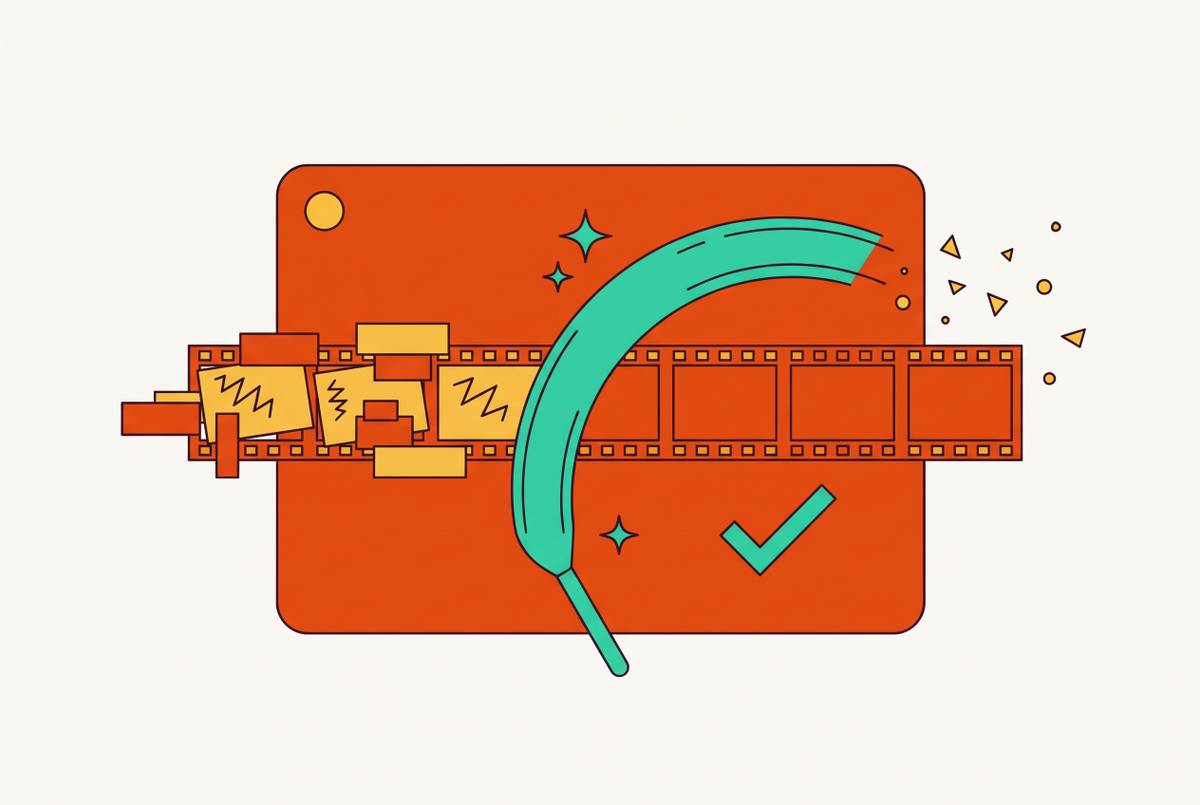
Filler-word removal addresses one kind of interruption at the transcript level. It flags instances of “um,” “uh,” and similar patterns, then removes the corresponding audio and video frames in one pass. Silence removal deals with another kind, from long gaps between sentences to waits for something to load and the pause before a presenter spots the wrong screen. The aim is to remove accidental slack while preserving the instructor’s natural pace.
Good recording habits make that cleanup more useful. The lesson for creators is to speak steadily and use natural pauses rather than rambling bridges while deciding what comes next. Keeping key on-screen text out of the lower third also reduces the burden when captions are added. Preparation and AI cleanup do different jobs. One makes the lesson easier to capture, while the other helps turn the captured performance into an intentional pace.
Why AI-generated captions are a teaching tool, not just an accessibility checkbox
Captions let learners read what is being said as they watch a demonstration. That benefit extends beyond accessibility compliance. Learners studying in a second language, working in a noisy environment, or processing text faster than speech can all use captions to follow the lesson. They expand the audience that can use the instruction effectively.
Active-word highlighting makes the word being spoken stand out by giving it a different color from the rest of the caption line. It gives the eye an anchor and helps retention. Captions that cover the button being demonstrated obscure the very action they are supposed to clarify. They belong below the action area.
Captions and transcripts also serve different purposes. Captions are synchronized with the video and appear in the player, while transcripts are downloadable text versions that learners can search, skim, and use for revision. A transcript helps someone revisit an explanation without replaying the whole lesson.
How instant sharing without a render queue changes what gets published
Exporting creates another decision point, where a good-enough video can be shelved because publishing it feels like more work than it is worth. This is the final version of the gap between capture and delivery. The explanation exists, but the learner still cannot use it. Content that never ships teaches nothing.
A quick clarification or worked example responds to a question that learners have now. A 20-minute render queue on a three-minute clip changes the calculation about whether to make it. The queue may be a technical step, but its consequence is educational. It can discourage the very short explanations that make an async course responsive.
Instant sharing removes the render step by providing a shareable link as soon as recording stops. The finished recording becomes something the creator can deliver immediately. That supports the loop in which a learner posts a question at 11pm and receives a video answer by morning. Speed here removes a delay between having a useful answer and letting someone learn from it.
How these features stack in practice across different course formats
Software tutorials put the screen at the center, so transcript editing and silence removal are especially useful for cleaning up the narrated demonstration. Caption placement is critical, while SRT export for LMS upload takes priority over in-player styling. Small screens introduce another concern. Auto-zoom or cursor-follow features can magnify the relevant area so learners can read terminals and menus without squinting. Long-recording stability belongs in the same evaluation, because audio that drops out of sync undermines an extended walkthrough.
Narrated slides and talking-head lectures reverse the emphasis because speech is the primary content. Filler removal and transcript editing therefore matter more for these lessons. Webcam overlay control also has a teaching purpose, allowing the presenter’s image to be sized, moved, or toggled after recording so it does not cover slide content. Active-word highlighting is useful here because there is no competing visual action to follow.
Supplemental async videos put delivery speed first. Basic filler removal and silence cleanup are enough for content meant to feel like a conversation, while heavy editing takes away from that feel. An invisible recorder or low-friction capture mode lowers the setup barrier. For multilingual and faceless courses, the priority shifts again toward consistent avatar narration or multilingual AI voiceover, depending on whether the starting point is a script or an existing screen recording.
Which AI tools are best for course creators, and what do they trade off?
Synthesia is best suited to faceless, multilingual training built from written scripts. It produces avatar-narrated video without filming a presenter, which fits training and onboarding content that needs the same presenter across lessons or translated versions. That is a generation workflow. It cannot edit footage that has already been filmed, so it is a poor fit for courses built around real screen recordings or live-taught lessons. Video minutes are also capped by plan, and unused credits do not roll over.
Guidde offers 200+ languages with AI voiceover, making it relevant to teams localizing an existing screen recording without re-recording the narration. Its role in this comparison is different. The starting material is a recorded demonstration. That distinction gives creators a useful dividing line between generating a lesson and adapting narration for one they already have. These capabilities alone do not establish either option as the answer to every capture, editing, captioning, and sharing need.
For recorded courses, the broader comparison is whether the needed features connect into one recording-to-sharing workflow. A teleprompter can support scripted narration, while an invisible recorder can reduce setup for supplemental videos. Neither automatically solves an editing bottleneck. Likewise, having a long AI feature list helps little if it is hard to update a video when the interface it shows changes. A video showing a UI that no longer exists is worse than no video at all, so frictionless re-recording is the tie-breaker.
How to evaluate an AI screen recorder against what your course actually needs
The practical evaluation starts with three questions about the course. Is the primary content your screen, your face, your slides, or a script? Screen-led lessons place more weight on transcript editing and silence removal, face-led lessons on filler removal and overlay control, and scripts can suit avatar narration. How often will the content need updating? A tool that makes a changed workflow easy to re-record may be more useful over time than a richer editor that makes every revision feel like a renovation.
What is the full path from recording to learner? The answer identifies whether content stalls during editing, rendering, LMS export, or captioning, so the evaluation can favor features that remove those specific delays. Reuse belongs in that calculation too. Producing a polished tutorial and a matching written transcript from the same recording reduces duplicated effort when the course also needs documentation.
Caption export deserves a concrete check before commitment. Verify that the tool exports SRT files compatible with the target LMS, because a caption file that needs conversion before upload to Udemy or Teachable adds friction back into the process. Record a five-minute lesson in a tool’s free tier, run its AI cleanup, generate captions, and time the path from stopping the recording to a shareable link or LMS-ready file. That elapsed time shows whether the tool removes the bottleneck or merely gives it a new address.