Free Screen Recording Tools vs. Paid Platforms for New Course Creators
Paid tools save time across a full course; free tools save money upfront.
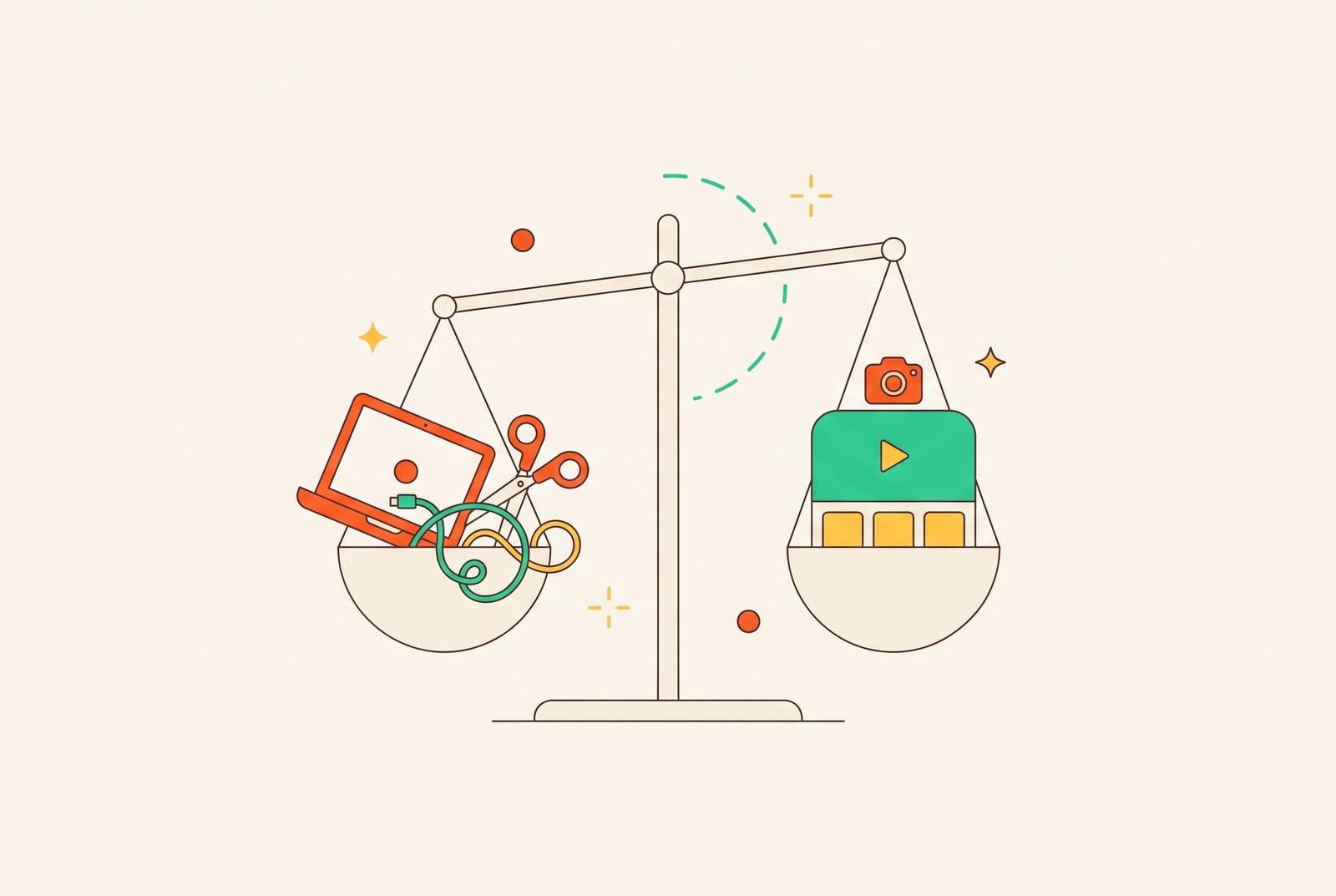
For new course creators without a video team, OBS Studio is the top free choice for watermark-free screen recording on Windows, while Camtasia is the stronger fit for recording, editing, captioning, and packaging lessons in one app. The choice is less about recording quality than workflow. Free tools save money upfront, but an integrated paid tool can save time on every lesson you finish.
Why the free-vs-paid framing misleads new course creators from the start
You are staring at a list of screen recorders, most reviewed for short-form content, while planning a 60-minute lecture. The cheapest option looks sensible because it captures the screen, and that seems to be the job. Except it is only the first job. A 45-minute lecture needs a different production chain from a 90-second async update, including dependable long recordings, readable overlays, captions, and an export your learning management system can accept.
That makes this a workflow decision before it is a budget decision. Count the steps between pressing record and having a lesson you can share. Each separate app adds another handoff or choice to make, and the same steps come with every lesson. Across a full course, a free subscription can come with hours of editing work per module. The invoice simply arrives in your calendar.
What course production actually demands from a recording tool
Long-session stability is the first filter. A recorder that loses audio sync, degrades, or crashes past the 40-minute mark is unsuitable for lecture content. Each part of a course recording can run well beyond an hour, so check how well the recorder holds up and what recording limits it has.
Webcam control is another practical requirement for software tutorials. The overlay needs adjustable size and position, plus the ability to switch it off when it obscures slides, code, or spreadsheet cells. Ideally, its position can also change after recording. Otherwise, the instructor’s face may be perfectly visible while obscuring the thing being taught, an unfortunate promotion of supporting cast to lead actor.
Editing and audio controls determine how much repair is possible. Cutting dead air, trimming false starts, rearranging sections, and adding zoom or callouts inside the recording app removes a major handoff. Separate microphone and system-audio tracks provide a different kind of control. They let you edit narration without disturbing video or audio playback included in the lesson. For demonstrations, that separation can be more useful than another decorative effect.
Check for captions too, before looking at price. Udemy requires captions for its Business content collection and strongly recommends them for other courses. Students learning in a second language also depend on them. With an external caption service, each lesson needs an upload, a wait, and a download, and the finished export still has to work in the destination LMS.
What is the best free Windows screen recorder without watermarks, and where does it stop?
OBS is the best free place to start for course creators who need unrestricted capture and can do the editing in another app. It is open-source, runs on Mac, Windows, and Linux, and has no recording time limit or watermark. Its scene-based model lets you prepare layouts for slides alone, slides plus webcam, or a full-screen webcam, then switch between them with hotkeys.
That control does require setup and learning time. Scene configuration is powerful precisely because you decide how the recording is assembled. OBS also offers solid hardware encoding, which is relevant when looking for a free recorder that will not slow down your computer. However, that feature is not a guarantee of no slowdown. The brief’s supported case for OBS is strong capture capability.
OBS has no timeline editor, automatic zoom, or cursor smoothing, and its experimental built-in captioning is limited. It also has no built-in course hosting. Those jobs remain separate, so a typical chain runs from recording to an editor, then captioning, any needed LMS format conversion, and upload. Free capture is complete. Course production is not.
ShareX is a highly customizable, open-source option for advanced Windows users, with a similar learning-curve trade-off. QuickTime on Mac offers built-in, zero-install simplicity for basic one-take captures with no mistakes. Screenity’s free plan caps recordings at 15 minutes, which rules it out for longer continuous lectures. For a creator who already uses a capable editor, records clean takes, and has time to configure the handoffs, OBS remains a sound choice.
How all-in-one paid tools collapse the multi-step workflow into one loop
In Camtasia, recordings of the screen, webcam, and system-audio go into a full multitrack timeline editor in the same app. From there, the creator can cut mistakes, rearrange sections, add callouts, generate captions, insert quizzes, and export SCORM packages for an LMS. The recording does not need a tour of several apps before it becomes a lesson.
Cursor emphasis and callout boxes direct attention, while zoom-and-pan animations make the relevant area easier to follow. SmartFocus can place zooms automatically based on cursor data, and one-click zoom effects reduce manual work. An interactive table of contents adds navigation. Together, these features cover the jobs that otherwise accumulate around a screen recording like dishes around a “quick” dinner.
The interface can feel dated, renders can be slow, and a subscription adds up for someone who publishes only occasionally. ScreenFlow offers Mac-based creators a different arrangement, with a one-time purchase and a capable multitrack editor with good performance. However, major version upgrades cost extra, it lacks automatic zooms, and its cursor treatment has not advanced materially in recent versions.
Editing in the recording app is especially useful when lessons are recorded in chunks. A 45-minute lesson can be assembled from logical segments, with corrections confined to the parts that need them. An external editor can also do that work. The paid tool’s distinction is keeping capture and assembly together. That is where saved effort can compound across a course.
AI editing is compressing the skill gap between free and paid tiers
AI-assisted editing weakens any argument that polished lessons require traditional editing skills. Automatic silence and filler-word removal can make a cleaner first draft without someone having to scrub through every pause by hand. Transcript-based editing also lowers the barrier for subject experts who do not want to learn a timeline editor.
AI can reduce the time spent cleaning a clip, regardless of tool tier, without removing the transfers between OBS, an editor, a caption service, and an LMS converter.
Relevant capabilities include screen and camera capture, a teleprompter, trimming, effects, subtitle generation, and instant upload with a share link without switching apps. Their value comes from working together. A creator who already edits in another app without wasting time may get enough help from AI cleanup to stay with free capture. Someone still building that setup has more reason to value fewer file moves and format-conversion steps.
Audio quality, segment length, and the production habits that matter more than tool choice
Whatever tier you choose, better ways of making lessons can now do more for you than more shopping. Start with intelligible audio, because students will tolerate imperfect video but abandon a lesson they cannot understand. A decent external microphone is a higher-priority purchase than a camera or screen-recorder upgrade. Clear speech does the teaching’s heavy lifting. A sharper picture cannot translate a muffled explanation.
Record in logical segments. This isolates mistakes, so a stumble late in lesson three does not require starting that lesson again from the top. It also fits the way students consume course content and gives editing a manageable unit of work. Each chunk has a boundary you can correct. That protection is useful whether assembly happens in the recording app or an external editor.
Keep the webcam overlay away from the interface being explained. In software tutorials, a bubble covering the relevant menu or code defeats the reason for showing the screen. Post-recording overlay repositioning solves a real clarity problem when a tool supports it. Your face should not become an access-control system. The learner needs to see the action.
For coding lessons and software walkthroughs, readable text deserves equal attention. Cursor-following zoom can magnify menus or terminal text during playback, making the demonstration easier to read on laptop and phone screens. Automatic zoom cuts down on the keyframe work that has to be done by hand. Camtasia’s cursor-data-based SmartFocus is relevant here because it addresses that specific production task.
How to match tool tier to where you actually are in building your course business
If you are testing an idea with a mini-course and already edit externally, starting free is a genuine recommendation. OBS gives you control over capture for that work, while QuickTime can suit basic one-take work on a Mac. Tolerance for a multi-app workflow is the deciding condition. Settling into a fragmented process can make it harder to change once the course is underway, regardless of output quality.
If you are producing multiple lessons per week or building a growing library, the calculation shifts toward repeatability. Student expectations around captions and consistent polish make the finishing steps harder to skip. At that point, the time spent on recurring handoffs can exceed the subscription cost of an integrated tool. Camtasia is the stronger fit for a broad instructional workflow. ScreenFlow is a strong alternative for Mac creators who prefer a one-time purchase and accept its feature and upgrade trade-offs.
If your destination LMS requires SCORM packaging with quiz tracking, that requirement narrows the choice immediately. Camtasia, iSpring Suite, and Articulate 360 offer explicit SCORM export for this kind of production, meeting requirements common in corporate training and formal e-learning. A free recorder alone cannot substitute for that packaging capability.
The decision can therefore change without the earlier choice having been wrong. The useful comparison is total production time per lesson across the full course. A free recorder saves money only if the workflow it leaves behind is a cost you can afford.